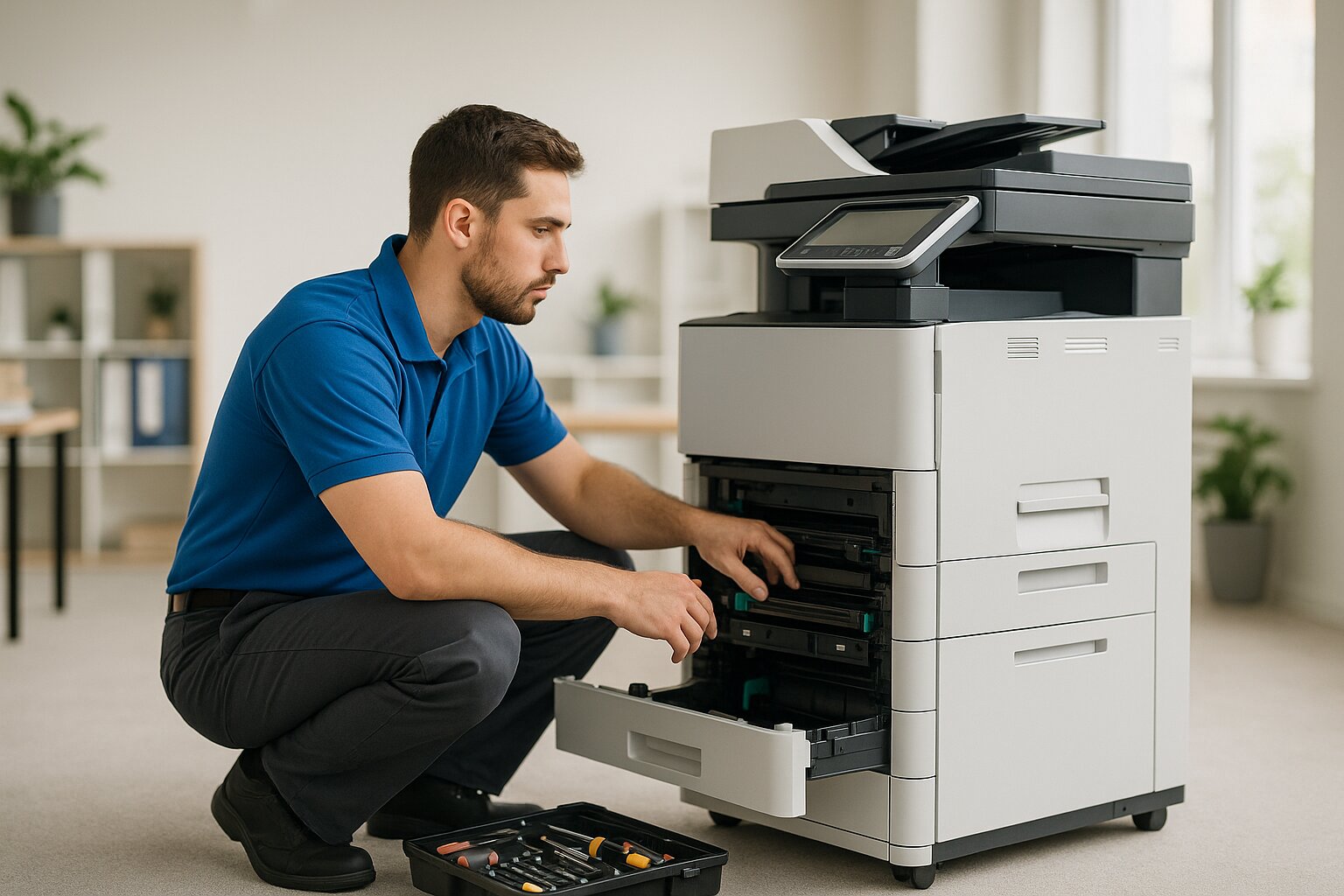

Why Does My Printer Keep Jamming? Causes and Fixes That Actually Work
You pull open the paper tray, tug out the crumpled sheet, close everything back up, hit print again, and it jams. Again. If that cycle sounds familiar, you are not alone. Paper jams are the single most common printer problem in offices everywhere, and the frustrating part is that most of them are completely preventable. We see it every week in offices from Clarksville to New Albany, and it is almost never the printer being out to get you.
The trick is figuring out why it keeps happening. A one-time jam is annoying. Repeated jams mean something specific is wrong, and blindly pulling out paper each time will not fix the root cause. This guide covers how to safely clear a jam, the most common reasons your printer keeps jamming, and what you can do to stop it from happening in the first place.
How to safely remove a paper jam
Before we dig into the causes, let us make sure you are clearing jams the right way. Pulling paper out incorrectly can tear it, leave fragments behind, and actually cause more jams down the road.
- Turn off the printer and unplug it. This protects you from moving parts and keeps the printer from trying to feed paper while you are working inside it. Give it a minute to cool down, since the fuser area gets very hot.
- Open all accessible doors and covers. Most printers have a rear access panel in addition to the front. Open everything so you can see the full paper path.
- Find the jammed paper. Look through the whole path: the input tray, the feed area behind the tray, the area around the toner cartridges, and the output area near the top or rear.
- Pull the paper out slowly in the direction it was traveling. This is the most important step. Do not yank it backwards against the feed direction. Grip the sheet with both hands as close to the rollers as you can and pull gently and evenly. If it resists, stop and try from the other side.
- Check for torn fragments. If the paper ripped, find every piece. Even a small scrap left inside will cause the next jam. Use a flashlight to inspect the rollers and guides.
- Close everything, plug the printer back in, and power it on. Run a test print to confirm the path is clear.
One important warning: never use tweezers, scissors, or pliers to pull paper out unless a fragment is truly unreachable. Metal tools can scratch the drum, damage rollers, or crack plastic guides. If you cannot reach a piece of torn paper, it is time to call a technician.
The most common reasons your printer keeps jamming
If your printer jams once in a while, that is normal. If it jams every few prints or every day, one of these issues is almost certainly the cause.
| Cause | What you will notice | The fix |
|---|---|---|
| Wrong paper weight or type | Jams at the pickup point or partway through | Match paper to the printer spec; use the bypass tray for heavy or specialty media |
| Overfilled or misaligned tray | Multiple sheets grabbed at once, or skewed feeds | Fill to the max line only; set guides to just touch the stack |
| Worn or dirty pickup rollers | Misfeeds or no feed at all | Wipe rollers with a damp lint-free cloth; replace when worn |
| Worn separation pad | Two or three sheets feed together | Replace the pad; many are a simple snap-in part |
| Damp paper from humid storage | Wavy, soft, or stuck-together sheets | Store sealed in a climate-controlled spot; try a fresh ream |
| Debris or torn fragments inside | A sheet catches in the same place every time | Inspect the path with a flashlight; remove every scrap |
Wrong paper type or weight
Every printer handles a specific range of paper weights. Standard copy paper is 75 to 90 GSM (20 lb bond). Card stock, labels, envelopes, and photo paper are heavier or have a different surface. If you feed paper that is too heavy, too thin, or too slick, the feed mechanism cannot grip it properly and you get jams. Check your printer spec sheet, use the correct tray, and run specialty media through the bypass tray. Starting with quality stock matters more than people think, and you can pick up reliable paper and supplies anytime in our online store.
Paper not loaded correctly
This is the number one cause of repeated jams and the easiest to fix. Overfilling the tray lets the pickup roller grab several sheets at once. Misaligned guides let paper feed at an angle or buckle going in. Fill to the max line and not past it, set the width and length guides so they just barely touch the stack, and make sure the paper is sitting flat.
Worn or dirty pickup and feed rollers
Pickup rollers are small rubber rollers that grab the top sheet. Over time they get smooth, dusty, or coated with paper residue and lose their grip, which leads to misfeeds and jams. Clean them with a lint-free cloth lightly dampened with water, not alcohol, which dries out the rubber. If cleaning does not help, replace them. Pickup rollers are a wear item rated for roughly 50,000 to 200,000 pages.
Worn separation pad
Next to the pickup roller is a rubber separation pad that makes sure only one sheet feeds at a time. When it wears down, multiple sheets pull together and jam right away. If you see two or three sheets feeding at once, this is your culprit. Separation pads are inexpensive, and on many printers they snap in. A service tech can swap one in minutes.
Paper stored in humid conditions
Paper absorbs moisture from the air, and here in the Ohio River valley our summers can run sticky and humid for weeks at a time. When a ream sits in a damp storage closet or a back room near a kitchen, the sheets go wavy, soft, or slightly stuck together. Damp paper clings to rollers, buckles in the path, and clumps. Store paper in a climate-controlled area (about 68 to 76 degrees F and 40 to 60 percent humidity), keep reams sealed until you need them, and if you suspect moisture, try a fresh ream from a drier spot.
Debris or torn fragments inside the printer
A previous jam that was not fully cleared can leave behind small fragments that catch every new sheet. Dust, toner buildup, and bits of label adhesive do the same thing. If jams started suddenly right after a jam that took some effort to clear, something likely got left behind. Open all access panels, use a flashlight to inspect the path around the rollers and tight turns, and remove fragments by hand or with compressed air.
My printer says paper jam but there is no paper stuck
This is one of the most maddening complaints we hear. The display shows a paper jam error, but when you open the printer there is nothing there. A few things are usually going on. Paper sensors are blocked or dirty, so dust or a tiny fragment makes the printer think a sheet is stuck; clean the sensors with compressed air or a dry lint-free cloth. A fragment you cannot see, a torn corner the size of a postage stamp, can trigger a jam sensor, so check around the rollers near the area the display points to. The sensor itself may be failing on older printers with high page counts. If a full power cycle (off, unplug, wait 30 seconds, plug back in, power on) does not clear the error, it is time for a service call.
How to prevent paper jams before they start
Most paper jams are preventable. Build these habits into your office routine and you will see a real drop in how often paper jams.
- Store paper properly. Keep it sealed until you load it, store reams in a climate-controlled spot away from windows and exterior walls, and rotate stock so older reams get used first.
- Prepare paper before loading. Fan the stack back and forth a few times to separate stuck sheets and reduce static, then tap the edges even on a flat surface.
- Load trays correctly every time. Never exceed the max fill line, set both guides to the paper size, and make sure the stack sits flat.
- Keep the printer clean. Wipe pickup rollers every few months, blow out paper dust with compressed air, and replace wear items at their rated intervals instead of waiting for them to fail.
- Use the right paper. Stick with stock that meets your printer spec, use fresh sheets from sealed reams, and do not mix paper sizes or types in one tray.
When a jam means a deeper problem
Occasional jams are a fact of life with any printer. But some warning signs point to something more serious. Jams that always crumple in the same spot usually mean a specific roller, guide, or sensor is failing. Jams that get more frequent over time usually mean a wear part is reaching the end of its life. Jams on every single print despite fresh paper and clean rollers mean the machine needs professional service. And grinding, clicking, or squealing noises mean gears or rollers may be damaged, so stop printing before you cause more harm.
The cost of repeated jams goes well beyond wasted paper. Every jam means someone stops working to fix it, and that lost time adds up faster than most offices realize, as we break down in our look at what copier downtime really costs your business. If jams have become a daily occurrence despite good maintenance, it may be time to consider whether your copier needs to be replaced.
We are your neighbors, not a 1-800 number
If your printer keeps jamming and you have worked through the basics, we can help. CCLM Supply is based right here in Clarksville, and we provide printer and copier service across Southern Indiana and the Louisville metro, from Jeffersonville and Sellersburg to Floyds Knobs and across Floyd and Clark County. We carry maintenance kits and replacement parts, including pickup rollers, separation pads, and fuser assemblies, and we run preventive maintenance programs that catch problems before they turn into downtime. When you call, you reach a neighbor who can be at your office fast, not a ticket queue two states away.
Do not let a jamming printer slow down your office. Reach out anytime at [email protected] or 812.800.8316, and I will tell you straight whether it is a quick fix or a service call.
If we help get your printer running smoothly again, a quick review means a lot to a local shop like ours. You can leave us a review on Google.
Need Help With Your Print Setup?
Get a free consultation and cost analysis from our team.